
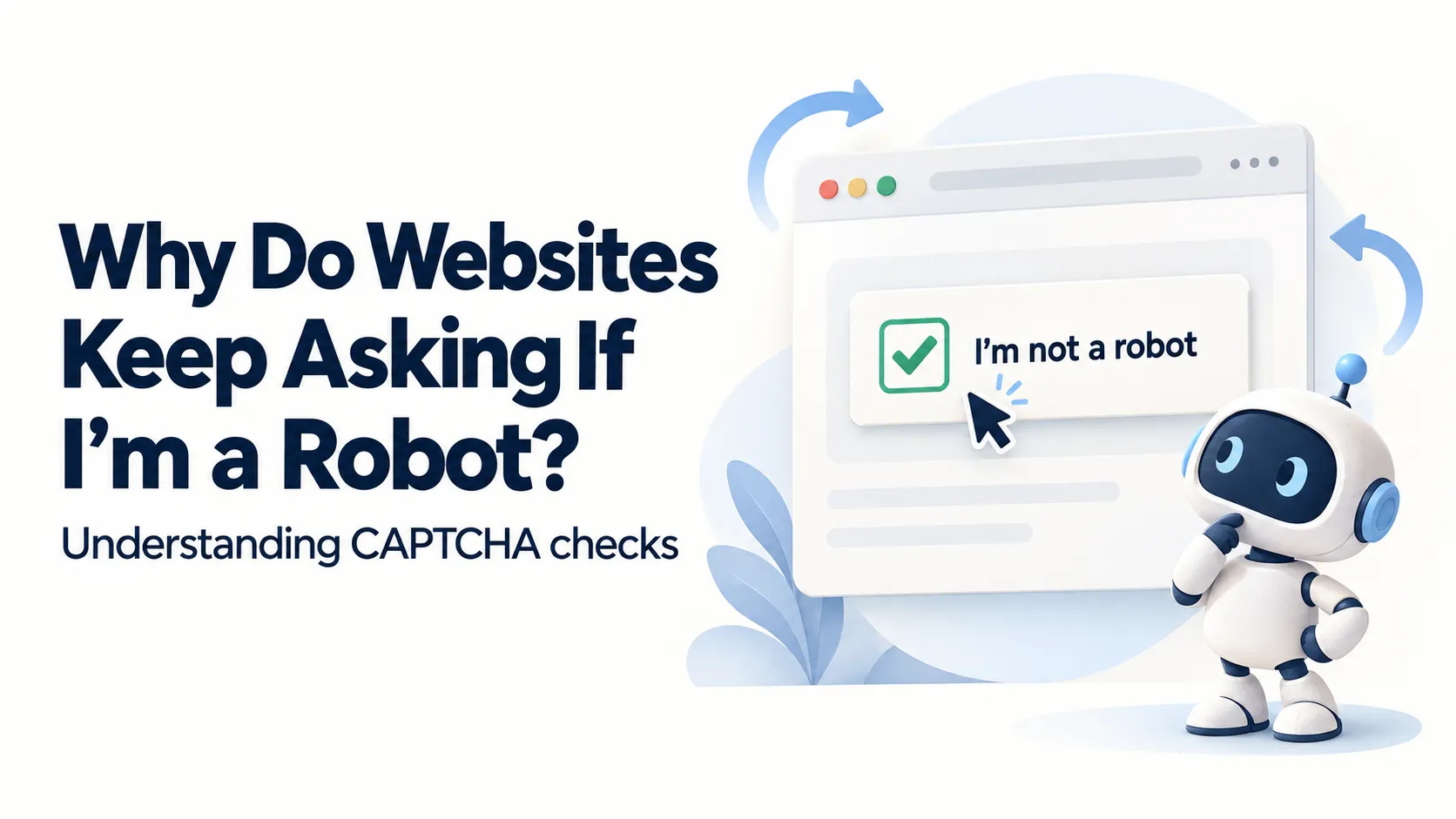
Websites ask you to verify that you are human when their security systems need more confidence that a visit is legitimate. Repeated checks can result from shared network activity, VPN connections, browser settings, or a verification process that keeps failing. They do not automatically mean you have done anything wrong.
The useful first step is to distinguish a normal security check from a challenge that never finishes. Those situations need different responses.
What is a CAPTCHA?
CAPTCHA stands for “Completely Automated Public Turing test to tell Computers and Humans Apart.” It is a type of test intended to distinguish people from automated software.
You might be asked to select images, enter characters, or complete a checkbox verification. Some modern systems perform checks in the background and request an interaction only when needed. Cloudflare’s documentation explains how its verification challenges assess requests before allowing access.
These checks help websites limit automated abuse. However, a security system can also challenge a legitimate visitor. Its decision is an assessment of the request, not proof of the person’s intentions.
Why do I keep getting “I’m not a robot” checks?
Other people may share your public IP address
A website may receive traffic from several people through the same public IP address. This can happen on school, office, and VPN networks. If some of that traffic appears automated, other users may also receive checks. Google’s guidance on unusual traffic from your computer network confirms that activity from other people using your network or VPN can trigger verification.
For example, a student using a campus connection might encounter a check while searching normally because another device on the network is sending automated searches. This is an illustrative scenario, not evidence that every campus CAPTCHA has that cause.
Your browser may be unable to complete the check A challenge can fail if the browser blocks something it needs to run. Disabled JavaScript, incompatible browser settings, extensions, or an unstable connection can contribute.
Cloudflare lists these among the causes of repeated or unsuccessful challenges. A repeated prompt can therefore reflect a technical failure rather than an incorrect answer.
The website may not retain your previous verification Some systems remember a successful check for a limited period. Cloudflare, for example, uses a clearance cookie for its Challenge Pages, with a validity period controlled by the website’s settings. If that cookie expires or is removed, the site may need to verify you again. Different checks can also have different rules, so completing one does not guarantee that every later request will pass without another challenge. Cloudflare explains this in its Challenge Passage documentation. Automated activity may actually be present Sometimes a program, browser extension, or another device is sending automated requests. Malware is one possible cause, but it is not the only one.
A CAPTCHA by itself is not a malware diagnosis. Persistent prompts alongside unfamiliar extensions, redirects, or other unexpected behaviour justify a closer check.
Is it a normal check, a loop, or an access block?
Use the page’s behaviour to decide what to investigate.
| What you see | What it suggests | Useful next step |
|---|---|---|
| One challenge, followed by normal access | Verification completed | Continue using the site |
| The challenge repeatedly restarts | The verification process may be failing | Check browser compatibility and connection stability |
| A message says verification expired | The previous result is no longer valid | Complete a fresh challenge |
| Access remains denied after verification | A separate website rule or account issue may apply | Record the error and contact the website |
| Instructions ask you to paste a command into your computer | Possible fake verification scam | Stop and close the page |
An access block needs a different investigation from a CAPTCHA loop. If you receive an explicit denial, LARUS Foundation’s guide to why an IP address may be blocked explains how to identify the cause and who can help.
What to do when verification keeps repeating
Work through these steps one at a time. That makes it easier to identify which change helps.
- Update your browser. Use a current, supported browser and retry the page.
- Check JavaScript and extensions. On a trusted website, check whether an extension is blocking verification. Test a temporary, site-specific change where possible, then restore your preferred settings.
- Try another browser. A successful comparison points toward a browser-specific issue, although it does not identify the exact setting.
- Check the connection. Use a stable network. If permitted, compare with another trusted connection, such as your own mobile hotspot.
- Consider the VPN. If safe and permitted, briefly test without it. Keep a required work or privacy connection in place and ask its provider for help instead.
- Contact the website if the loop continues. Include the page address, time, browser version, error text, and any request identifier shown, such as a Cloudflare Ray ID.
These are troubleshooting comparisons, not guaranteed fixes. A problem that disappears on another network still needs evidence before it can be attributed to IP reputation, filtering, or another cause.
Do not assume that buying a dedicated IP address or installing a paid “CAPTCHA removal” service is necessary.
What if I cannot solve the challenge?
Try an alternative challenge where one is available. Google’s reCAPTCHA help describes options such as requesting a different image challenge or using an audio challenge.
If the available options do not work with your disability, device, or assistive technology, contact the website and request another way to complete the task.
Difficulty with a CAPTCHA is not evidence that someone is an illegitimate visitor. The World Wide Web Consortium’s analysis of CAPTCHA accessibility barriers explains how these tests can exclude people with disabilities.
Website owners should provide usable alternatives and a clear support route. Security checks need to protect a service while allowing legitimate people to use it.
How to recognise a fake “verify you are human” page
A legitimate browser verification should not require you to open your computer’s command window and paste or run a command.
Microsoft has documented ClickFix attacks using fake verification prompts. These pages imitate familiar checks and persuade visitors to perform actions that can install malware.
Stop if a supposed CAPTCHA tells you to:
- Open Windows Run, PowerShell, or Terminal.
- Paste and execute a command.
- Download or install software to prove you are human.
A familiar logo is not proof that the page is genuine. Close the page and return to the service through an address you know. If you already ran a command or installed something, contact your IT support or a trusted security professional.
LARUS Foundation’s guide to recognising internet scams and DDoS Attacks Use IP Addresses provides further context on deceptive websites and messages.
Frequently asked questions
1. Does a CAPTCHA mean my computer has been hacked?
No. Shared network traffic and verification failures can also cause prompts. Investigate further if you notice other signs of compromise or the problem persists.
2. Why do I get more checks when using a VPN?
Other users may share the VPN’s public connection, and their activity can affect how a website assesses it. Some VPN configurations can also interfere with verification. This does not mean every VPN triggers challenges.
3. Will private browsing stop CAPTCHA checks?
Not reliably. It can help test some browser-state problems, but it does not normally change your public IP address. A private session may also lack the verification state saved in your regular session.
4. How long should I wait before trying again?
There is no universal waiting period. Follow any timing instruction the website provides. If verification repeatedly restarts, investigate the failure or contact support instead of assuming that waiting will fix it.
5. Who can stop the checks?
The website controls its verification requirements, sometimes through a security provider. Your network administrator, internet provider, or VPN provider may help if the problem originates on the connection. The relevant contact depends on what is failing.
6. Understand the check before changing your settings
A verification request is a security decision that can be mistaken or fail technically. Identify what the page is asking, make targeted checks, and ask for help when the process prevents legitimate access.
For more plain-language explanations of the systems behind everyday online experiences, explore LARUS Foundation’s internet education resources.