
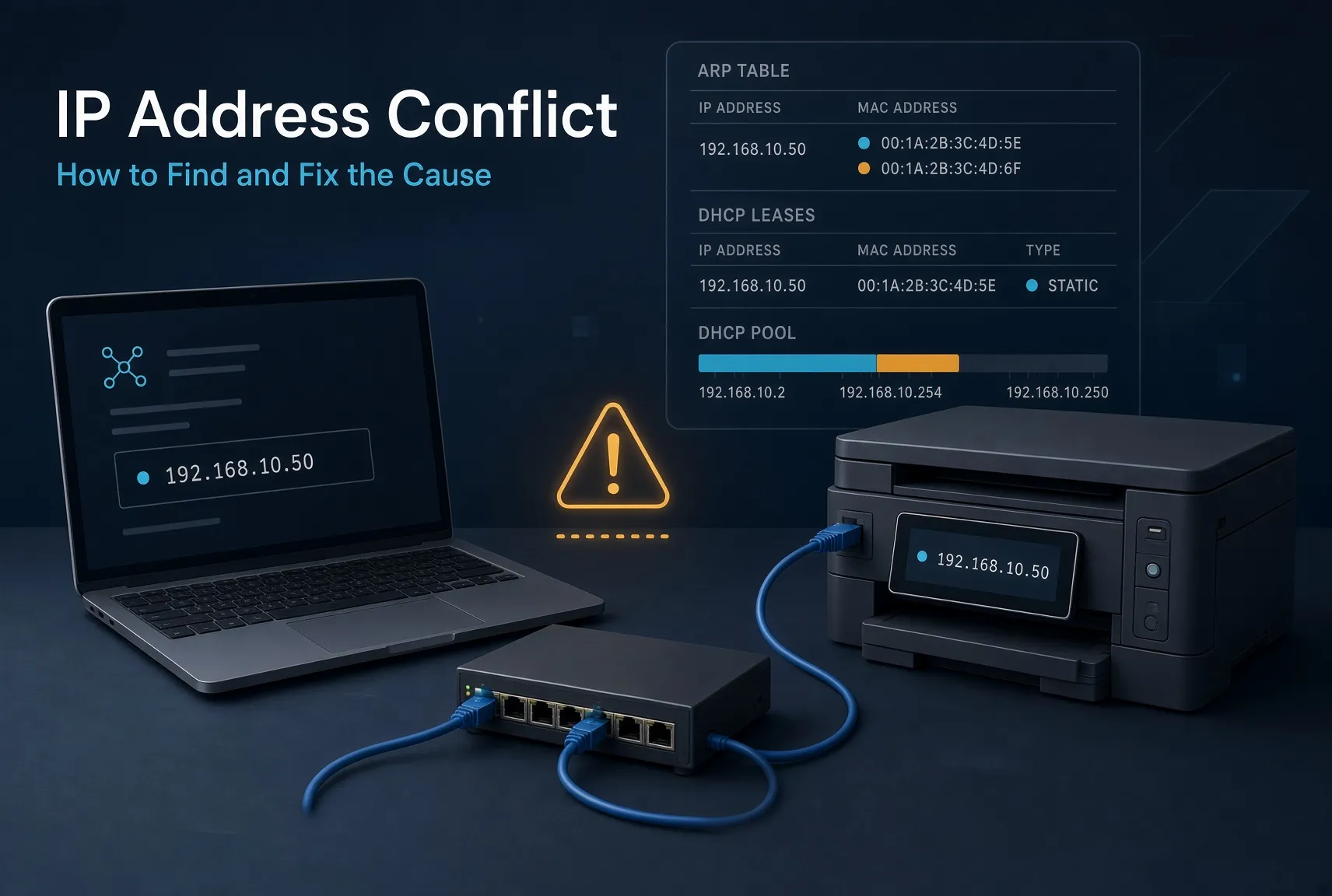
An IP address conflict occurs when devices on the same network link attempt to use the same IP address without an intentional mechanism for sharing it. The result can be interrupted connections, unreachable services or an operating-system warning.
Fixing the problem requires identifying the devices involved and understanding how each received its address. Restarting a device may temporarily restore connectivity while leaving the underlying configuration unchanged.
This guide focuses on ordinary IPv4 networks, using DHCP records, device settings and local network evidence to investigate the cause.
What Causes an IP Address Conflict?
Common causes include two devices receiving the same manual configuration, a static address falling inside a DHCP allocation pool, or independently managed DHCP servers offering overlapping addresses.
For example, an administrator might manually assign a printer 10.20.30.80 without excluding that address from the office DHCP pool. A laptop could then be offered the same address.
IPv4 hosts can use ARP-based conflict detection before or during address use. However, these mechanisms do not replace coordinated address management. RFC 5227: IPv4 Address Conflict Detection
The same private address appearing in two isolated networks is not automatically a conflict. Record the VLAN, site and network context before comparing addresses.
Recognise the Symptoms Without Assuming the Cause
An explicit duplicate-address warning is a useful starting point. Other symptoms are less specific.
| Observation | What to investigate |
|---|---|
| A device reports a duplicate address | Identify the address, interface and other device mentioned in the event |
| A printer becomes unreachable intermittently | Compare its configuration with DHCP leases and local address mappings |
A Windows DHCP scope contains BAD_ADDRESS entries | Review conflict events and the circumstances in which they occurred |
| A problem began after a device was cloned | Check whether its manual network configuration was copied |
| Connectivity fails after networks are connected | Check for overlapping subnets as well as individual duplicate addresses |
Intermittent connectivity alone does not establish an IP conflict. DNS errors, incorrect routes, wireless problems and firewall rules can produce similar symptoms.
Step 1: Record the Affected Device’s Configuration
Before changing settings, record:
- The affected interface and IPv4 address.
- Subnet mask and default gateway.
- Whether DHCP is enabled.
- The DHCP server and lease times, if applicable.
- The interface’s MAC address.
- The location, VLAN and time of the problem.
On Windows, use:
ipconfig /allThis displays detailed TCP/IP configuration for each adapter. Match the output to the affected connection, especially when the device also has VPN or virtual adapters. Microsoft Learn: ipconfig
Keep the original details with the incident record. They help distinguish the configuration present during the failure from settings applied later.
Step 2: Compare DHCP Records with Static Assignments
Find the DHCP scope serving the affected network. Check the disputed address against leases, reservations, exclusions and known static devices.
A DHCP lease describes an assignment made through DHCP. It does not prove that another device has not been manually configured with the same address.
DHCP also supports different allocation methods, so confirm how the particular client receives its configuration rather than assuming every address is dynamically selected. RFC 2131: Dynamic Host Configuration Protocol
Look for:
- Static devices inside the dynamic allocation pool.
- Reservations associated with the wrong client.
- Unexpected DHCP servers.
- Overlapping allocation ranges without suitable coordination.
- Recent scope, relay or device-configuration changes.
Microsoft’s troubleshooting guidance specifically recommends checking available leases, BAD_ADDRESS entries and static addresses that have not been excluded from a DHCP scope. Microsoft: DHCP Troubleshooting Guidance
Multiple DHCP servers are not inherently a fault. Properly configured failover or coordinated allocation can be legitimate.
Step 3: Examine the Local IP-to-MAC Mapping
ARP information can help investigate which hardware address is associated with an IPv4 address on the local link.
On Windows:
arp -aTo inspect a particular address:
arp -a 10.20.30.80These commands display cached mappings. Windows maintains ARP tables for individual network adapters, so check the relevant interface. Microsoft Learn: arp
Compare observations from the affected network with the suspected devices’ actual settings. If necessary, a network administrator can correlate the MAC address with switch or wireless-controller records.
A changing mapping is a clue, not a complete diagnosis. Failover systems, proxy ARP and legitimate configuration changes can complicate interpretation. Across a routed connection, the local host normally resolves its next hop rather than the remote device’s MAC address.
Likewise, a failed ping does not prove an address is unused.
Step 4: Confirm the Devices and the Timeline
Build a short evidence table before choosing a fix.
The following is an illustrative scenario, not a recorded incident:
| Evidence | Printer | Laptop |
|---|---|---|
| Network | Office VLAN 30 | Office VLAN 30 |
| Address | 10.20.30.80 | 10.20.30.80 |
| Assignment method | Manually configured | DHCP lease |
| Recorded configuration | Address entered during installation | Lease issued that morning |
| Management gap | Static assignment missing from inventory | DHCP pool included the printer’s address |
This combination points to a static assignment overlapping the DHCP pool.
An IPAM entry alone would not confirm which device is currently active. Compare the intended assignment with device configuration, lease history and observations from the relevant network.
For the broader record-management process, see What Is IP Address Management (IPAM)?
Check whether the warning has another explanation
A conflict warning does not always mean two ordinary endpoints have been assigned the same address.
Microsoft documents a case in which a switch or router’s IP Device Tracking probes interact with Windows duplicate-address detection. The client may decline an offered address, and the DHCP server may record BAD_ADDRESS.
For that pattern, investigate probe timing and the documented vendor behaviour. Do not disable conflict detection simply to remove the warning. Microsoft: Event ID 4199 and DHCP Address Conflicts
Step 5: Correct the Allocation Problem
Choose the change that addresses the confirmed cause.
| Confirmed cause | Appropriate correction |
|---|---|
| Two devices manually configured with one address | Assign one device a verified available address and update its dependencies |
| Static address inside a dynamic pool | Move the static assignment or exclude it from dynamic allocation |
| Incorrect DHCP reservation | Correct the client association and verify the resulting assignment |
| Unintended DHCP server | Remove its unintended service after confirming its role |
| Cloned static configuration | Assign the clone an appropriate unique configuration |
| Overlapping networks connected together | Review the address and routing design rather than treating it as one host’s lease problem |
In the printer example, one option is to move the printer to a verified address outside the dynamic pool. Another is to retain its address while correcting the DHCP configuration and resolving the laptop’s current assignment.
Adding an exclusion does not itself remove an address already configured on another device. Verify both endpoints after the change.
Check dependencies before moving an established server, printer or network appliance. Print queues, DNS records, monitoring and access rules may refer to its existing address.
Renew DHCP configuration after correcting the cause
On a Windows DHCP client, a targeted renewal can request updated configuration:
ipconfig /renew "Ethernet"Replace Ethernet with the actual adapter name. Renewal may return the same address; it is not a substitute for fixing the allocation problem.
Releasing an address or changing adapter settings can interrupt connectivity, including a remote administration session. Microsoft Learn: ipconfig
Step 6: Verify Recovery and Update IPAM
Verify the service that originally failed, rather than relying only on the disappearance of a warning.
For the printer example, check that:
- The printer and laptop have the intended, distinct addresses.
- The DHCP records reflect the corrected assignment.
- Users can print and the laptop can access its required services.
- The problem does not return when the relevant devices reconnect.
Then record the final assignment, responsible team, change reference and verification time in IPAM.
If the conflict returns, reopen the evidence review. A second DHCP source, an overlooked static device or an automated configuration process may be restoring the problem.
Is an IP Address Conflict a Cyberattack?
A duplicate-address event alone is insufficient evidence of an attack.
Configuration mistakes and detection interactions can explain such events. If the investigation reveals unexpected DHCP responses, unexplained address-mapping changes or an unfamiliar device, preserve the relevant records and investigate further.
Avoid attributing activity to a person based only on an IP or MAC address. Those identifiers need context from device, access and network records.
How to Reduce Repeat Conflicts
Use the incident to improve the assignment process:
- Keep manual assignments consistent with DHCP pools and exclusions.
- Review reservations when equipment is replaced.
- Include network context in every IPAM record.
- Check copied network settings when cloning systems.
- Reconcile inventory records with operational evidence.
- Review combined address plans before connecting networks.
IPAM supports these checks, but its value depends on records being maintained and allocation processes being followed.
For address-planning context, read Best Practices for IPv4 Subnet Allocation in Data Centres.
Conclusion
Investigating an IP address conflict means connecting three pieces of evidence: the device’s configuration, the address-assignment records and what the network is actually observing.
Identify the devices and assignment methods, correct the allocation problem, verify the affected service and update IPAM. This makes the resolution repeatable and reduces the chance that the same address will cause another interruption.
Frequently Asked Questions
Can DHCP cause an IP address conflict?
Conflicts can occur when DHCP allocation overlaps static assignments or when independent servers allocate the same addresses without coordination. DHCP itself is designed to manage address assignment.
Will restarting my router fix an IP conflict?
It may change symptoms or assignments, but it does not reliably correct duplicate static settings or an overlapping allocation plan.
Does clearing the ARP cache fix duplicate addresses?
It removes cached mappings. It does not change the addresses configured on the devices, so the underlying conflict can remain.
Does BAD_ADDRESS prove another device is using the address?
No. Investigate the related events and network behaviour. Microsoft documents detection interactions that can produce these entries.
Can two devices use the same private IP address?
Yes, when they are in separate, isolated networks. The network context determines whether the reuse creates a problem.
Can IPAM automatically fix every conflict?
No. Capabilities depend on the product and its integrations. IPAM can support detection and coordinated allocation, but correcting live device configuration may require administrator action.
References
- RFC 5227 — IPv4 Address Conflict Detection
- RFC 2131 — Dynamic Host Configuration Protocol
- Microsoft Learn — ipconfig
- Microsoft Learn — arp
- Microsoft Learn — DHCP Troubleshooting Guidance
- Microsoft Learn — Event ID 4199 and DHCP Address Conflicts